
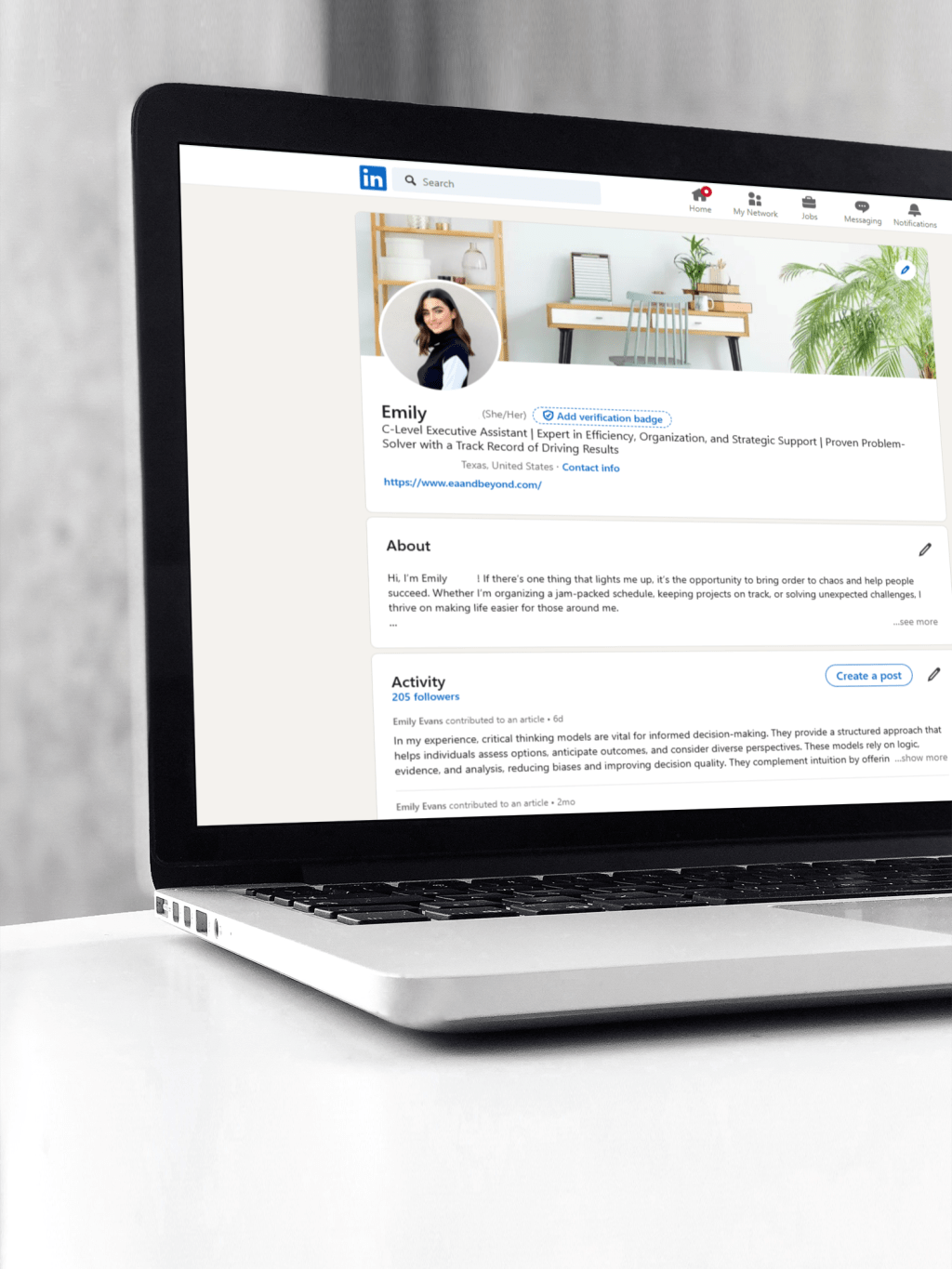
Picture yourself in this situation: Your dream job exists right now. A recruiter is sitting at their computer, searching LinkedIn for someone with exactly your skills and experience. But your profile never shows up in their search results. Instead, it sits invisible, lost among the other 1 billion LinkedIn users. The reason? Your profile isn’t optimized for search.
LinkedIn works like Google, but for careers. When recruiters search for candidates, they type in specific keywords and skills. If those words aren’t on your profile, you won’t appear in their results. It’s that simple. This guide will show you exactly how to fix that problem and make sure recruiters can find you.
Understanding LinkedIn as a Search Engine
Before we dive into the specifics, you need to understand one important thing: LinkedIn is a search engine first and a social network second. When someone searches for “marketing manager” or “software engineer,” LinkedIn’s algorithm scans millions of profiles looking for those exact terms. The profiles that use the right keywords in the right places show up first. Your job is to make sure your profile is one of them.
Step 1: Create a Headline That Gets You Found
Your headline appears right under your name and shows up in every search result. LinkedIn automatically fills this with your current job title, but that’s a huge mistake. You have 220 characters to tell recruiters exactly who you are and what you do. This is the single most important place for keywords on your entire profile.
Why Your Headline Matters So Much
When recruiters search LinkedIn, your headline is weighted more heavily than almost any other section. If a recruiter searches for “project manager,” but your headline just says “Employee at ABC Company,” you won’t show up. But if your headline says “Project Manager | PMP Certified | Leading Cross-Functional Teams,” you’ll rank much higher.
How to Write a Powerful Headline
Start by thinking about what job you want next, not just what you do now. Then research job postings for that role and write down the keywords that appear most often. Your headline should include:
- Your target job title: Use the exact title from job postings, not creative versions. If jobs say “Data Analyst,” don’t write “Data Detective.”
- Your specialized skills: Add 2-3 specific skills that employers want. Generic skills like “hard worker” don’t help. Specific skills like “SQL” or “Financial Modeling” do.
- Your unique value: What makes you different? Maybe you specialize in a specific industry or have a rare certification.
Examples of Strong Headlines
Instead of: “Marketing Professional” Write: “Digital Marketing Manager | SEO & PPC Specialist | Growing E-Commerce Brands | Google Ads Certified”
Instead of: “Sales Representative” Write: “B2B Sales Executive | SaaS Solutions | Consistently Exceeding Quota by 30% | Salesforce Expert”
Instead of: “Recent Graduate” Write: “Computer Science Graduate | Python & Java Developer | Machine Learning Projects | Seeking Software Engineering Role”
Notice how these headlines tell you exactly what the person does, what they’re good at, and include searchable keywords that recruiters would actually type into LinkedIn’s search bar.
Step 2: Write an About Section That Tells Your Story
Your About section (also called your summary) gives you 2,600 characters to explain who you are, what you’ve accomplished, and what you’re looking for. This is your chance to use natural language to include dozens of searchable keywords while also showing your personality.
Start With a Strong Opening
The first two lines of your About section appear in search results before someone clicks “see more.” Make those lines count. Start with your professional identity and immediately mention your key skills or achievements.
Weak opening: “I am a professional with many years of experience in various industries.” Strong opening: “I’m a financial analyst with 8 years of experience helping Fortune 500 companies reduce costs and increase profitability through data-driven insights and forecasting models.”
Structure Your About Section
Here’s a proven structure that works:
Paragraph 1 (The Hook): Start with who you are and your biggest accomplishment or what you’re known for. Use 2-3 sentences maximum.
Example: “I’m a registered nurse with a passion for patient education and preventive care. Over the past 6 years, I’ve worked in emergency medicine, where I’ve treated over 10,000 patients and trained 50+ new nurses in critical care procedures.”
Paragraph 2 (Your Expertise): List your core skills and areas of expertise. This is where you pack in keywords naturally.
Example: “My expertise includes emergency triage, patient assessment, wound care, medication administration, electronic health records (Epic and Cerner), and ACLS certification. I specialize in high-pressure environments where quick thinking and calm leadership make the difference between life and death.”
Paragraph 3 (Your Achievements): Share specific results you’ve delivered. Use numbers whenever possible.
Example: “In my current role at City Hospital, I reduced patient wait times by 22% by implementing a new triage system. I also decreased medication errors by 15% through a peer review program I created and now manage.”
Paragraph 4 (What You’re Looking For): End by saying what opportunities interest you or what problems you solve.
Example: “I’m looking to bring my emergency medicine expertise to a teaching hospital where I can mentor new nurses while continuing to provide excellent patient care. If you’re looking for a skilled RN who combines clinical excellence with leadership ability, let’s connect.”
Keywords to Include
Think like a recruiter. What terms would they search for? Include:
- Job titles you want (and related titles)
- Technical skills and tools (software, equipment, methodologies)
- Industry-specific terms
- Certifications and credentials
- Types of projects or work you do
- Industries you serve
Don’t just list these as bullet points. Weave them naturally into sentences that tell your story.
Step 3: Optimize Your Experience Section
Your Experience section should look similar to your resume, but LinkedIn gives you more space to explain what you did and how well you did it. Recruiters often read this section carefully, and LinkedIn’s search algorithm scans it for keywords.
For Each Job, Include These Elements
Job Title: Use the official title, but if it was unusual or unclear, you can add a clarification in parentheses. For example: “Customer Success Specialist (Account Manager)” helps you show up for both searches.
Company Description: If the company isn’t well-known, add a one-line description. This helps recruiters understand the context and adds industry keywords. Example: “TechStart Solutions (B2B SaaS company serving healthcare providers).”
Overview Paragraph: Start with 2-3 sentences explaining your main responsibilities and the scope of your role.
Example: “Managed a portfolio of 75 enterprise clients, serving as their primary point of contact for technical support, product training, and account growth. Oversaw a $2.3 million annual revenue portfolio while maintaining a 98% client retention rate.”
Achievement Bullets: List 4-7 specific accomplishments using this formula:
- Action verb + specific task + measurable result + context (when helpful)
Strong examples:
- “Increased team productivity by 35% by implementing Agile project management methodologies and weekly sprint planning sessions”
- “Generated $500K in new revenue by identifying upsell opportunities and presenting customized solutions to existing clients”
- “Reduced customer complaints by 40% through creation of comprehensive training materials and proactive communication strategies”
Weak examples:
- “Responsible for managing projects” (no result, too vague)
- “Worked with team members” (no specific action or outcome)
- “Helped improve processes” (not measurable)
Skills and Tools: At the end of each job description, list the specific skills, software, and tools you used. This is keyword gold.
Example: “Key skills: Project management, stakeholder communication, budget forecasting, risk analysis | Tools: Microsoft Project, Jira, Confluence, Excel, Tableau”
Going Back in Time
For your most recent 2-3 jobs, provide detailed information as described above. For older positions, you can use shorter descriptions (2-3 bullets instead of 5-7). Jobs from more than 15 years ago can be listed with just the title and company unless they’re particularly relevant to your current goals.
Step 4: List Your Education Properly
Your education section validates your qualifications and adds credibility. It also contains searchable information that recruiters filter by.
What to Include
- Degree type and major (Bachelor of Science in Biology)
- University name
- Graduation year (you can omit this if you’re concerned about age discrimination, though some recruiters specifically search by graduation year range)
- Relevant honors (Dean’s List, cum laude, scholarships)
What to Skip
- Your GPA (unless you’re a recent graduate applying for entry-level roles and it’s above 3.5)
- High school information (once you have a college degree)
- Every single class you took (this clutters your profile)
For Recent Graduates
If you graduated within the past 2 years and don’t have much work experience, you can add more detail:
- Relevant coursework (4-6 most important classes)
- Senior thesis or capstone project
- Academic honors and awards
- Relevant extracurricular activities (leadership roles, academic clubs)
Step 5: Add All Certifications and Licenses
Professional certifications prove your expertise and are highly searchable. Many recruiters specifically filter search results to show only candidates with certain certifications.
Use the Licenses & Certifications Section
Don’t just mention your certifications in your About section. Add them to the dedicated Licenses & Certifications section. For each one, include:
- Official certification name (use the exact name, not abbreviations only)
- Issuing organization
- Issue date and expiration date (if applicable)
- Credential ID or URL (this allows recruiters to verify it)
Examples of Valuable Certifications by Field
- Technology: AWS Certified Solutions Architect, CompTIA Security+, Cisco CCNA, Google Analytics Certification
- Project Management: PMP, CAPM, Scrum Master (CSM), PRINCE2
- Finance: CPA, CFA, CFP, FRM
- Human Resources: SHRM-CP, PHR, SPHR
- Marketing: HubSpot Inbound Certification, Google Ads Certification, Facebook Blueprint Certification
- Healthcare: BLS, ACLS, PALS, specialty board certifications
Even micro-credentials and online course certificates from platforms like Coursera, LinkedIn Learning, or Udemy can be valuable, especially if you’re changing careers or learning new skills.
Step 6: Master the Skills Section
The Skills section is one of the most powerful tools for LinkedIn search optimization. Recruiters regularly use it as a filter, searching for candidates who list specific skills. You can add up to 50 skills, and you should use most of that space.
How to Choose the Right Skills
- Study job descriptions: Look at 10-20 job postings for your target role. Make a list of every skill mentioned. The ones that appear most often are the ones you should definitely include (if you have them).
- Include both hard and soft skills:
- Hard skills: Technical abilities, software, tools, methodologies (Python, Financial Modeling, AutoCAD, Content Marketing)
- Soft skills: Transferable abilities (Leadership, Communication, Problem Solving, Team Collaboration)
- Use exact terminology: If jobs ask for “Search Engine Optimization,” list it as “Search Engine Optimization” not just “SEO.” Include both if you have room.
- Prioritize your top skills: Your first 3 skills are displayed prominently and weighted more heavily in search. Put your most important, most relevant skills first.
Getting Endorsed
Skills with endorsements from other people carry more weight. To get endorsed:
- Endorse others first (they often return the favor)
- Ask close colleagues to endorse your top 5 skills
- Make sure your top skills are ones you actually want to be known for
Skills Section Strategy
Organize your 50 skills like this:
- Top 10: Your core expertise (the skills you want jobs for)
- Next 20: Related technical skills and tools
- Next 10: Transferable soft skills
- Last 10: Secondary skills or ones you’re developing
Step 7: Customize Your LinkedIn URL
Your LinkedIn profile comes with a URL that includes random numbers, like: linkedin.com/in/john-smith-87234098. This looks unprofessional and is hard to remember or share.
How to Customize It
- Click “Edit public profile & URL” on your profile page
- Click the pencil icon next to your URL
- Create a custom URL using your name: linkedin.com/in/johnsmith or linkedin.com/in/john-smith
Why This Matters
- Professional appearance: Clean URLs look better on resumes and business cards
- Easier to share: People can remember and type your URL
- Better for search engines: A custom URL helps your profile rank higher on Google when someone searches your name
- Trackability: You can see who’s viewing your profile through this link
If your name is taken, try adding your middle initial, a credential, or your location: linkedin.com/in/johnsmith-mba or linkedin.com/in/johnsmith-nyc
Make Your Profile Visually Appealing
LinkedIn is a visual platform. Profiles with professional photos get 21 times more views than profiles without them. Here’s how to make a strong visual impression.
Your Profile Photo
This appears in every search result, every comment you make, and every connection request. It needs to be professional but approachable.
Requirements for a great LinkedIn photo:
- Your face takes up 60% of the frame: Not a full-body shot
- High resolution: At least 400 x 400 pixels, but 1000 x 1000 is better
- Recent photo: From within the last 2 years
- Professional attire: Dress like you would for a job interview in your industry
- Solid or simple background: Nothing distracting behind you
- Good lighting: Natural light or professional lighting, no shadows on your face
- Genuine smile: Warm and approachable, not stiff or forced
- Eye contact: Look directly at the camera
- Just you: No other people, no pets, no cropped group photos
Industry-Specific Photo Guidelines
- Corporate/Finance/Law: Suit and tie or professional business attire, neutral background
- Creative/Marketing/Design: Business casual, can show more personality
- Tech/Startups: Smart casual, relaxed but polished
- Healthcare: Professional attire or scrubs, clean and approachable
- Education: Professional but warm and friendly
Your Background Banner
The banner image appears at the top of your profile (1584 x 396 pixels). This prime real estate shouldn’t be left as the default blue pattern.
Ideas for your banner:
- Your company logo or branding (if you own a business)
- An image representing your industry (city skyline for real estate, code on a screen for developers)
- A professional workspace or tools of your trade
- A simple design with your name and tagline
- A subtle pattern or color that matches your personal brand
Free tools for creating banners: Canva (has LinkedIn banner templates), Adobe Express, or Snappa
Keep it professional: Avoid busy images, too much text, or anything controversial. The banner should enhance your profile, not distract from it.
Get Powerful Recommendations
Recommendations are testimonials from people you’ve worked with. They appear on your profile and provide social proof of your skills and character. While endorsements are quick clicks, recommendations are written paragraphs that carry real weight.
Why Recommendations Matter
- Build trust: A manager or client vouching for you is more convincing than anything you say about yourself
- Provide details: Recommendations share specific stories about your work
- Show relationships: They demonstrate that you’ve built positive professional relationships
- Differentiate you: Most profiles have few or no recommendations
How to Get Great Recommendations
- Ask the right people: Prioritize managers, clients, senior colleagues, or people you worked closely with on important projects. One recommendation from a VP carries more weight than five from peers.
- Make it easy: People are busy. Send a thoughtful message explaining:
- What project or time period you’d like them to focus on
- What skills or qualities you hope they’ll mention
- Offer to write a draft they can edit (many people appreciate this)
- Be specific in your request: Instead of “Can you write me a recommendation?” try “Could you write a brief recommendation about our work together on the product launch? I’d love if you could mention my project management and problem-solving skills.”
- Give recommendations first: Write recommendations for others without being asked. Many will reciprocate.
Sample Request Message
“Hi Sarah, I hope you’re doing well! I’m updating my LinkedIn profile and would be grateful if you could write a brief recommendation about our work together on the XYZ project. I’m particularly proud of how we launched it two weeks ahead of schedule despite the technical challenges. If you’re comfortable mentioning my technical problem-solving and team leadership, that would be perfect. I’m happy to draft something for you to edit if that’s easier. Thanks so much!”
How Many Recommendations Should You Have?
Aim for at least 3-5 quality recommendations, with at least one from a supervisor or manager. Having 8-10 is even better. Spread them across different roles to show consistent performance throughout your career.
Add Projects, Publications, and Portfolio Work
LinkedIn allows you to showcase work beyond your job descriptions. These custom sections help you stand out and give recruiters concrete examples of your capabilities.
Featured Section
Pin your best work to the top of your profile using the Featured section. This can include:
- Links to articles you’ve written
- Presentations you’ve given
- Videos of you speaking or demonstrating your work
- PDFs of reports, designs, or documents you’ve created
- Links to websites or apps you’ve built
- Media coverage about you or your work
How to add: Click “Add profile section” then “Recommended” then “Add featured.” You can add up to 9 items.
Projects Section
Describe specific projects you’ve worked on, especially if they’re not fully covered in your job descriptions. For each project include:
- Project name and brief description
- Your specific role
- Date and duration
- Team members (you can tag LinkedIn connections)
- Skills used
- Link to the final product or results (if available)
This section is especially valuable for:
- Freelancers showing client work
- Consultants highlighting engagements
- Students showcasing academic projects
- Anyone who’s worked on high-profile initiatives
Publications, Patents, and Courses
If you’ve published articles, research papers, or books, add them in the Publications section. Include:
- Publication title
- Publisher
- Date
- Description and impact
- URL to view it
The same applies for patents (with patent number) and courses you’ve taught (with course name and institution).
Volunteer Experience
Don’t skip this section. Volunteer work shows you’re well-rounded and care about your community. It can also demonstrate leadership and skills you haven’t used in paid work. Many recruiters specifically look for this, especially at companies with strong values around corporate social responsibility.
Use “Open to Work” Strategically
LinkedIn’s “Open to Work” feature tells recruiters you’re looking for new opportunities. Used correctly, it can significantly increase recruiter views of your profile.
How to Set It Up
- Click the “Open to” button below your profile picture
- Select “Finding a new job”
- Fill in your preferences:
- Job titles (add up to 5 titles you’re interested in)
- Location types (remote, on-site, hybrid)
- Locations (specific cities or “United States”)
- Start date (immediately or specific date)
- Employment type (full-time, part-time, contract, temporary, internship)
Visibility Options
You have two choices for who can see your “Open to Work” status:
All LinkedIn members: This adds a green #OpenToWork frame around your profile photo that everyone can see. Choose this if:
- You’re currently unemployed
- Your current employer knows you’re looking
- You’re a student looking for your first job
- You don’t care if your boss sees you’re job hunting
Recruiters only: This signals to recruiters and people with LinkedIn Recruiter accounts, but your coworkers and boss won’t see it. Choose this if:
- You’re currently employed and want to be discreet
- You’re exploring options but not actively job hunting yet
Important Note: Even with “recruiters only,” your current company’s HR team might still see it if they have recruiter accounts. If you’re in a sensitive situation, be cautious.
Does It Actually Work?
Yes. LinkedIn’s data shows that profiles with “Open to Work” turned on are more likely to receive messages from recruiters and have higher overall visibility in recruiter searches. It signals you’re receptive to opportunities, which makes recruiters more likely to reach out.
Activate Creator Mode for Extra Visibility
Creator Mode is a LinkedIn feature that can increase your profile’s visibility and help you appear in more searches.
What Creator Mode Does
When activated:
- Your “Connect” button changes to “Follow” (people can follow you without connecting)
- Your featured and activity sections move higher on your profile
- You can add up to 5 topics you post about, which appear under your headline
- You may appear in search results for those topics
- You get access to LinkedIn Live, audio events, and newsletters (at certain follower counts)
Should You Use It?
Turn on Creator Mode if:
- You post content regularly (at least once a week)
- You want to grow your audience beyond your immediate network
- You want to be seen as a thought leader in your industry
Skip Creator Mode if:
- You rarely post on LinkedIn
- You mainly use LinkedIn for job searching and networking
- You prefer more private, one-on-one professional relationships
How to Set Topics
Choose topics related to your expertise and career goals. These appear on your profile and help you show up in searches. Be specific. Instead of broad topics like “Marketing,” choose “Content Marketing,” “SEO,” or “Email Marketing.”
Keep Your Profile Active and Current
An optimized profile is never truly finished. LinkedIn rewards activity and recency.
Regular Updates to Make
- Update your headline and about section whenever your career goals change
- Add new skills as you learn them
- Update job descriptions when you take on new responsibilities or achieve new results
- Add certifications as soon as you earn them
- Refresh your photo every 2-3 years
- Request new recommendations after completing major projects
Maintain Activity
LinkedIn’s algorithm favors active users. You don’t need to post every day, but regular engagement helps:
- React to and comment on posts from your network (3-5 times per week)
- Share valuable articles or insights related to your industry (1-2 times per week)
- Publish articles or posts showcasing your expertise (1-2 times per month)
- Send personalized connection requests to new people in your field (weekly)
Activity vs. Annoying
You don’t need to become a LinkedIn influencer. Quality beats quantity. One thoughtful comment on someone’s post is worth more than ten generic “great post!” comments. One well-written article every few weeks is better than daily low-effort posts.
LinkedIn Advice You Should Ignore
Not all LinkedIn advice is good advice. Here’s what to skip:
Bad Advice: “Connect with everyone you meet”
Better strategy: Build meaningful relationships with people who align with your career goals and values. Your network should be people you actually know or want to know, not random strangers. A network of 500 relevant connections is more valuable than 5,000 random ones.
Bad Advice: “Post every single day to stay relevant”
Better strategy: Share quality content when you have something valuable to say. Overposting leads to people hiding your updates. Post when you have insights to share, projects to highlight, or valuable information for your network. Two great posts a month beats 30 mediocre ones.
Bad Advice: “Keep your profile strictly professional with no personality”
Better strategy: Let your authentic self show through. Include interests, volunteer work, and appropriate personal touches that make you memorable and relatable. Recruiters want to hire humans, not robots. Just keep it appropriate for a professional context.
Bad Advice: “You must have a premium LinkedIn account”
Better strategy: The free version of LinkedIn is sufficient for most job seekers. Premium features like InMail and expanded search can be helpful, but they’re not necessary. Focus on optimizing your free profile first before considering premium.
Bad Advice: “Never message recruiters directly because it’s annoying”
Better strategy: Thoughtful, personalized messages to recruiters are often welcome, especially if you’re a good fit for roles they’re hiring for. Just make sure your message is specific, concise, and clearly explains why you’re reaching out. Generic “do you have any jobs?” messages are what annoy recruiters.
Your LinkedIn Optimization Checklist
Use this checklist to make sure you’ve covered everything:
Profile Basics
- Professional, high-quality headshot photo
- Custom background banner
- Customized LinkedIn URL with your name
- Keyword-rich headline (not just job title)
- Compelling About section with achievements and keywords
- Complete contact information
Experience and Credentials
- Detailed experience section with measurable achievements
- All relevant jobs from the past 10-15 years
- Education section completed
- All certifications and licenses added
- 30-50 relevant skills listed
- Top 3 skills reflect your primary expertise
Social Proof and Content
- 3-5 quality recommendations
- Featured section with portfolio work or achievements
- Projects section (if applicable)
- Publications or volunteer work (if applicable)
- Recent activity showing engagement
Visibility Settings
- “Open to Work” status set (if actively job searching)
- Public profile is visible (check privacy settings)
- Creator Mode on/off decision made based on your goals
Take Action Now
Your LinkedIn profile is your 24/7 career advocate. While you sleep, recruiters are searching for candidates. Make sure they find you.
Start with the highest-impact changes first:
- Rewrite your headline with keywords
- Update your About section
- Add or improve your professional photo
- Fill in your Skills section completely
- Turn on “Open to Work” if you’re job hunting
Then work through the rest of the checklist over the next few days. Don’t try to do everything at once. Making your profile 80% optimized this week is better than planning a perfect profile you never actually complete.
Which section will you update first today?
You Might Also Enjoy:




 EA and Beyond
Leave a comment